Most of you know that with installing SXA you will get around 70 components out of the box to use on your website. But what is a bit unknown is the concept of rendering variants.
What are rendering variants? Most of the components or renderings within SXA have a default visual representation. For example, the “Page Content” component simply shows the value from the content field of the current item. And that’s exactly where the rendering variants come in. Rendering variants allow you to read fields and customize the html that is used to render the content.
Let’s take a look at the Promo component. The configuration for the default variant is located under “/sitecore/content/[TENANT]/[SITE]/Presentation/Rendering Variants/Promo/Default”. The default configuration looks like this:

But where does the HTML originate from. To get a better understanding we can add custom css classes to all items in the variant configuration.
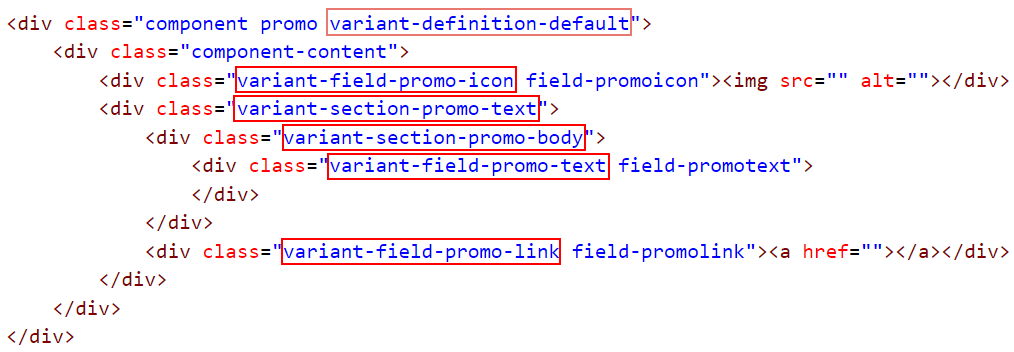
As you can see every item in the variant configuration can output html the way you want it. You can choose your own tags and add your specific css classes. By using the rendering variants you can generate the component output anyway you like. But it doesn’t stop there. There is even more power hidden in the variants. We have only discussed the variant field and variant sections. But you can add other types to your variant as well. In the current version (SXA 1.3.1) you can add a total of nine different variant types:
Variant Date This type displays date and time values in a custom format. This type is the same as a default variant field but has the addition of choosing your date/time format. Query Use the query field if you would like to display an array of items based on a Sitecore Query. This variant type enables you to do advanced lookups of items and show them in a list.
Placeholder Insert a placeholder in your rendering variant if you want to embed other components inside. Reference Displays field from a referenced item on your context item. If you want to display a field from a referenced item, you can define this field in the PassThroughField. You can use this variant field for the following fields: LinkField (GeneralLink, DropLink), FileField (File), ImageField (Image), and ReferenceField (Droptree). Reference items can be nested. For example if you would like to show the authors information on an article page.